5 underrated Blink camera and doorbell features you need to know about
From custom clip lengths to notification snooze, here’s five Blink tips you probably didn’t know about


If you’re looking for a security camera or video doorbell for your home security, Blink is one of the names that will pop up in your search. Compared to other companies – including its sibling brand, Ring – Blink is considered one of the cheaper brands on the market so it can often be overlooked.
But if you’re on a budget and looking for a good quality camera or doorbell, Blink is a wise choice. You might not realise it either, but Blink has some clever underrated features up its sleeve which makes its cameras and doorbells much more advanced than you might have initially thought possible.
From custom clip lengths to notification snooze, here are five underrated Blink security features you need to know about to get the most out of smart home set up.
1. Custom clip lengths
When your Blink camera detects motion, it’ll start recording for a certain length of time, depending on the model. In the Blink app, you can customise the clip length so your camera or doorbell will record video for your preferred duration when movement is detected.
If you have a Blink Indoor or Outdoor camera, you can adjust the clip length from five to 60 seconds, whereas Blink Mini or Blink Video Doorbells can be customised from five to 30 seconds. When you adjust your clip lengths, this can also be done in increments of one second.
To set your own custom clip lengths, go into your Device Settings in the Blink app and select Video and Photo Settings. From there, you can use the slider to set the clip length. Not only does this give you more or less footage when motion is detected, but if you adjust the clip length shorter, you can prolong your camera’s battery life.
2. Time Lapse videos
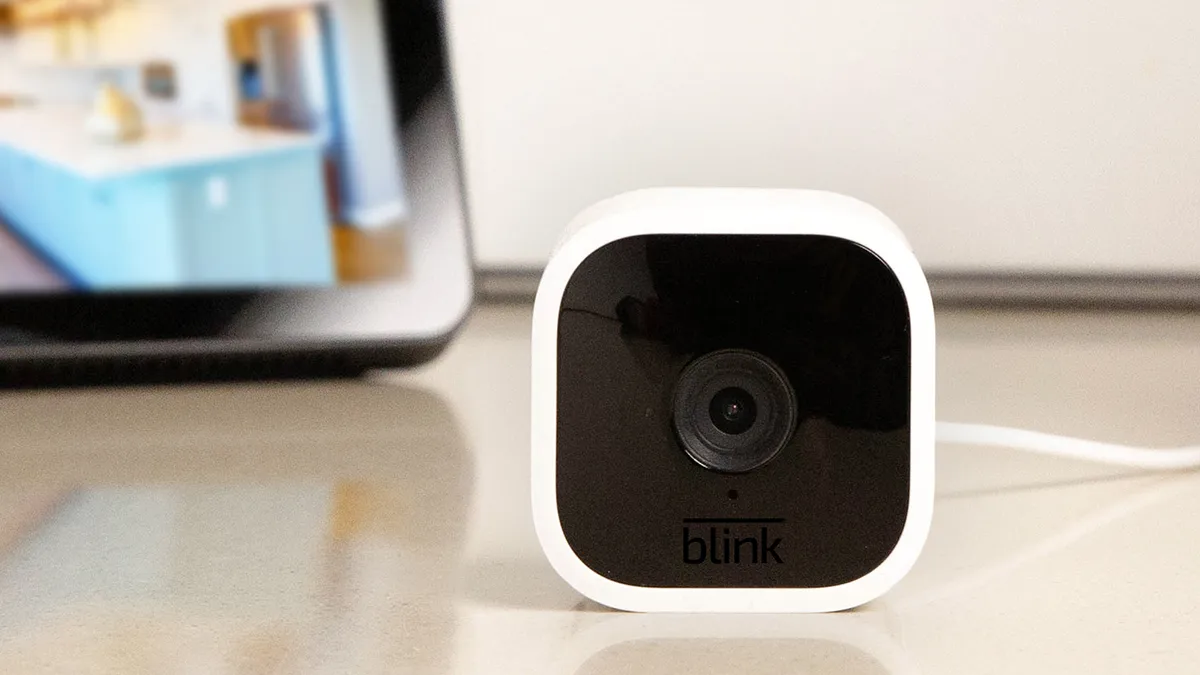
Blink’s Time Lapse or Photo Capture is a feature which allows you to make daily compilation videos so you can see a full overview of what happened around your home in one video. Available on most Blink Indoor or Outdoor cameras, this feature stitches together hourly snapshots into a single video clip for fast viewing of your day’s activities.
To use Time Lapse, you need to enable it in the Blink app. Like the last feature, go to Device Setting, Video and Photo Settings and turn on the Photo Capture feature. This will instruct your camera to take a photo every hour. The video will then automatically be created without you having to do anything.
3. Notification snooze
Sometimes, notifications can just get a bit too much, especially if your camera is alerting you to a leaf flying by your front door. To prevent notifications getting annoying, Blink has Notification Snooze where you can temporarily mute motion alerts for a certain period of time.
When you select this, your Blink camera will still record but it just won’t alert you to anything until the allotted time is over. This feature is extremely useful if you’re going in and out of your house repeatedly, and you don’t want your phone to keep buzzing as the camera and app picks up your movements.
4. Temperature alerts

There are built-in temperature sensors in select Blink Outdoor and Indoor cameras, which might sound strange but is actually a very helpful feature to have. The camera’s sensors can detect changes in the environment – if it gets too hot or too cold – and will alert you so you can check on your belongings.
For example, if you’re using an indoor camera to keep an eye on your garage or greenhouse, it can notify you that the ambient temperature has dropped so you can protect your plants or plumbing from an unprecedented chill.
In the Blink app, go to Device Settings, General Settings and Temperature. From there, click Enable Temperature Alert and you can customise the heat maximum and cold minimum temperatures.
5. Use your Blink camera as a doorbell chime
Not all video doorbells come with a chime as standard, and while the Blink Video Doorbell will alert you via your phone, it’s nice to have a back-up chime so you don’t miss the door. This feature is only handy if you have both a Blink Video Doorbell and a compatible Blink plug-in camera, so if you have those, you can set up your camera to act as a doorbell chime.
How this works is you can set your Blink Mini camera to make a chime sound when someone rings the doorbell. In the Blink app, go to your Video Doorbell’s Device Settings and then Doorbell and Chime Settings. There’s an option called ‘Use Blink Mini Camera as Chime’. Once this is saved, you can go to your Mini Camera’s settings and adjust its ‘Mini as Chime’ volume which can be found in its audio settings.
