Your Apple HomePod has ‘hidden’ controls that you might like using more than Siri
Siri not skipping your music? Try this HomePod touch control instead

Arguably, the best thing about using a smart speaker is being able to quickly ask its voice assistant for help. Whether you’re checking the weather or setting a timer, saying “Hey Siri” gets you your answers so much faster.
But if we’re honest – and regardless of how voice assistants are progressing – sometimes, it’s just easier to type or tap your smart speaker or app for better control. Many people forget that their smart speaker or display have buttons or touch controls, but these ‘hidden’ features are actually incredibly helpful.
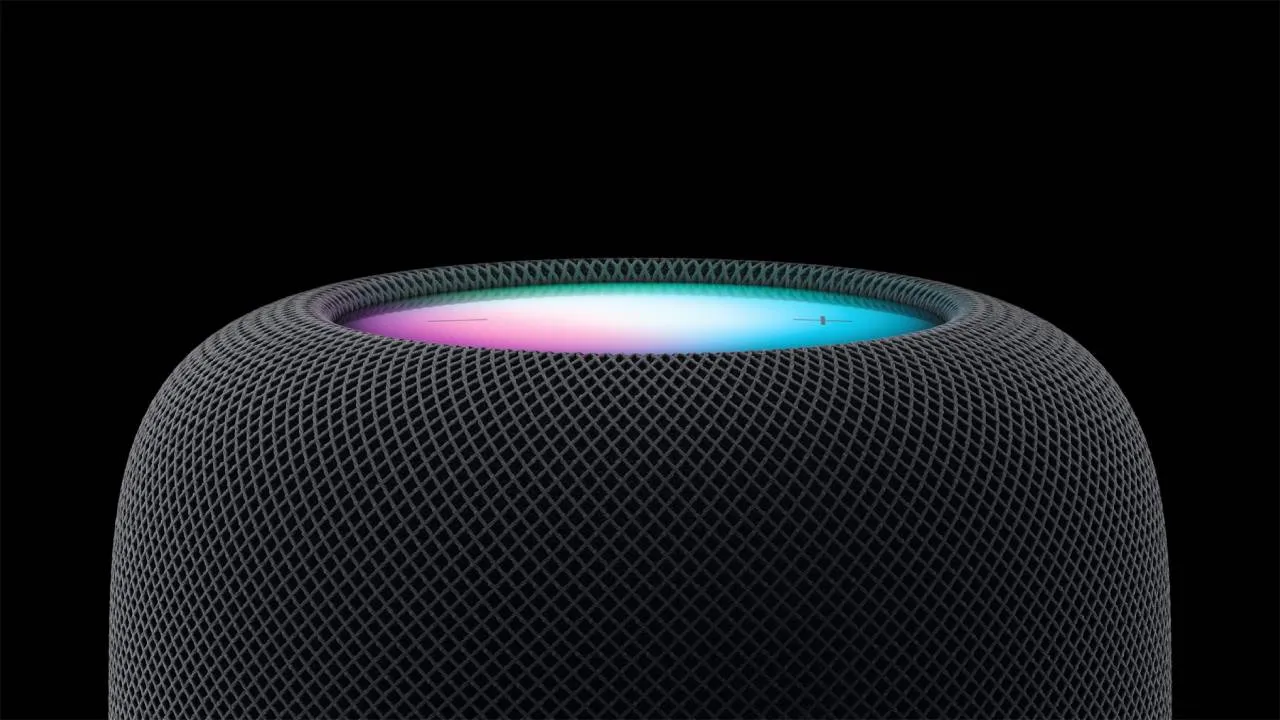
For Apple HomePod and Apple HomePod Mini users, the touch controls are located at the top of the speaker. Of course, you have your standard + and – buttons which change the volume of your music, audiobook and Siri, but if you tap or press your HomePod in a particular way, you can activate other actions.
For example, if you want to activate Siri without speaking, simply touch and hold the top of your HomePod. After a few beats, you should be able to see a multicoloured light which is the sign that Siri is listening. From there, you can make your request.

My favourite ‘hidden’ touch controls for your HomePod are related to music and alarms. To play or pause music, you simply tap the centre of your HomePod and to skip a song, you double tap it. To go back a song, you have to triple tap the HomePod, although this only works when you’re listening to an album or playlist.
If you’ve set an alarm or timer, you can turn it off by tapping anywhere on the top of your HomePod. Another handy tap control is for when a call is coming in. Your HomePod should display a green light when a call is happening, and you can simply tap that light to end the call or hold it to put the call on hold.
All of these touch controls are immediately configured on your HomePod or HomePod Mini but there are some you may need to set up in your iPhone. For example, you can customise your HomePod to ignore repeated touches but this will have to be organised in your iPhone under HomePod settings.
As someone who’s tested many smart speakers, having touch controls on them is extremely handy. Sometimes. you don’t want to waste your voice shouting at a voice assistant to stop your music so having physical controls can make things easier.
