
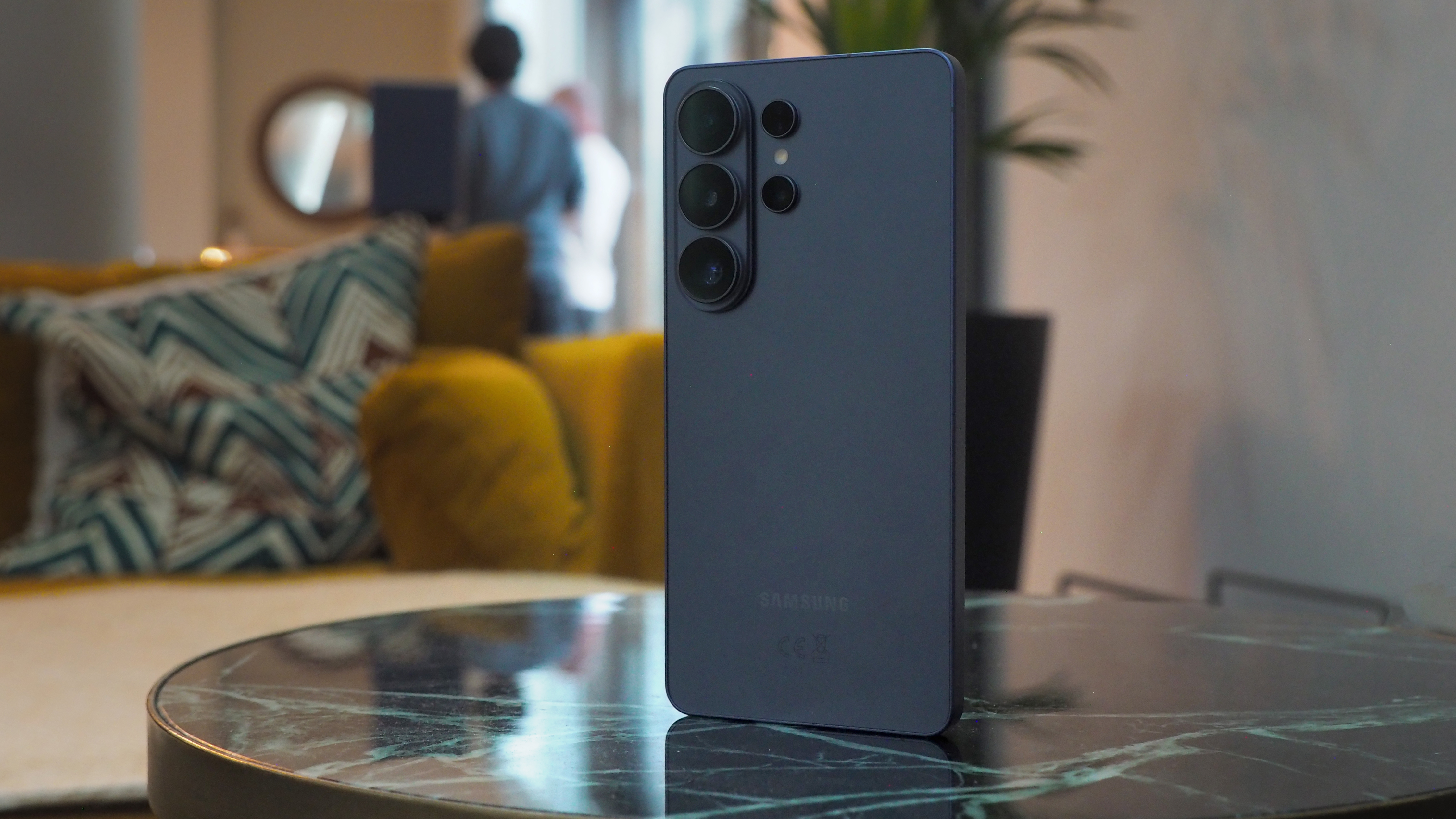
TL;DR: It’s a challenge to find a smartphone anywhere on the market that’s more secure than the Galaxy S26 Ultra, which brings the stunning new Privacy Display to the table, but also boasts a raft of other features to ensure your data is yours and nobody else’s.
Privacy isn’t something that should come as a second thought when you’re buying a new smartphone or using apps and services nowadays – it’s clear that we’re all rightly thinking more about our data and who should have access to it. That’s no bad thing, and the best smartphones on the market put tools in your hands to help you manage your data, rather than making it harder to know what you’re in control of.
That’s certainly the case with the jaw-dropping Galaxy S26 Ultra, a phone from the absolute top bracket, and one that is arguably changing the game in terms of what we expect from smartphones in terms of privacy and security. If you’re wondering exactly how to lock up your data and secure your personal information, these steps should show you just what you can do with the S26 Ultra that other handsets often can’t match.
How to use Privacy Display to stop prying eyes looking at your phone

The first time you see Privacy Display1 in action, you’ll wonder why it isn’t on every phone. This feature makes your phone screen far harder to see from sidelong angles, hugely improving your level of privacy when in public places – and it’s really easy to use, following these steps.
- Head to your Settings app on the S26 Ultra
- Tap on Display
- Toggle on the Privacy Display setting
You can also activate it from your quick panel, by swiping down from the top of the screen and then tapping on the Privacy Display icon.
Best of all, if you tap on the actual words “Privacy Display” in either of these places, you can access more settings, including the ability to toggle the setting on and off automatically for certain apps, or even to make it turn on whenever you’re about to enter a password or PIN code.
This gives you total control over how private your phone display is, and means that you can browse documents in public without fear, enter sensitive information without as much risk, and any number of other options. It really is something that no other phone on the market can match right now.
How to get an extra layer of security from Samsung Knox

If you’ve been paying attention to Samsung’s phone launches (as well as its laptops, smartwatches and more) in the last decade or so, you’ve probably noticed the Samsung Knox2 logo – and it really is worth clarifying just how impressive Knox has become over time.
It’s not some afterthought, but is now a complete ecosystem that basically secures your data across apps, messages and even your browsing.
Do I need to turn Samsung Knox on?

The best part of Samsung Knox, arguably, is that it’s included on your device without you needing to do anything, meaning no extra subscriptions or paywalls, and no steps for you to follow if you want to use it.
Keeping your most precious data isolated in a secure vault on your device, Knox ensures that apps only have access to the data you choose to unlock, making it a huge tool for keeping your privacy locked up.
How to use Call Screening to stop time-wasters from tying you up on the phone

There are few things more annoying than picking up a call from an unknown number, only to discover that you’ve been spam called – especially since the most sophisticated attacks often waste plenty of your time before giving you a hint that they’re not real.
The S26 Ultra, though, can make these way easier to avoid if you turn on Call Screening, a feature you’ll soon be unable to live without. Here’s how to turn it on and customise it:
- Open the Phone app
- Tap the More options icon (three vertical dots) in the top-right
- Tap Settings, then Call screening
- Toggle the switch to activate it
This enables the feature, which you’ll then be able to use whenever you get a call – but you can also choose to have it automatically start screening unknown callers, which can be really helpful. You can also choose your preferred language for transcriptions, and also customise the assistant's voice and speed.
Once you’ve got it turned on and you’re using it, when you get an unknown call you can let your AI assistant talk to the caller for a bit, then check in on the live transcript to see what the conversation’s about. You get the option to end the call at any time, but also to pick it up and take over yourself, for when you can see that it’s a genuine enquiry.
This is one of those features that can save you huge amounts of time, especially if it catches even one sophisticated scam, and has the potential to save you money, too, by swerving callers with bad intentions.
If you’re keen to upgrade to a phone that puts your privacy front and centre, making it a pillar of how you’ll use the hardware and software at your disposal, look no further than the Samsung Galaxy S26 Ultra; you can find out more about the phone and its security features on Samsung’s website, right here.
1. Requires manual activation in settings to function. Privacy Display feature is not AI-powered. 2. Valid Samsung Knox Account required.
-
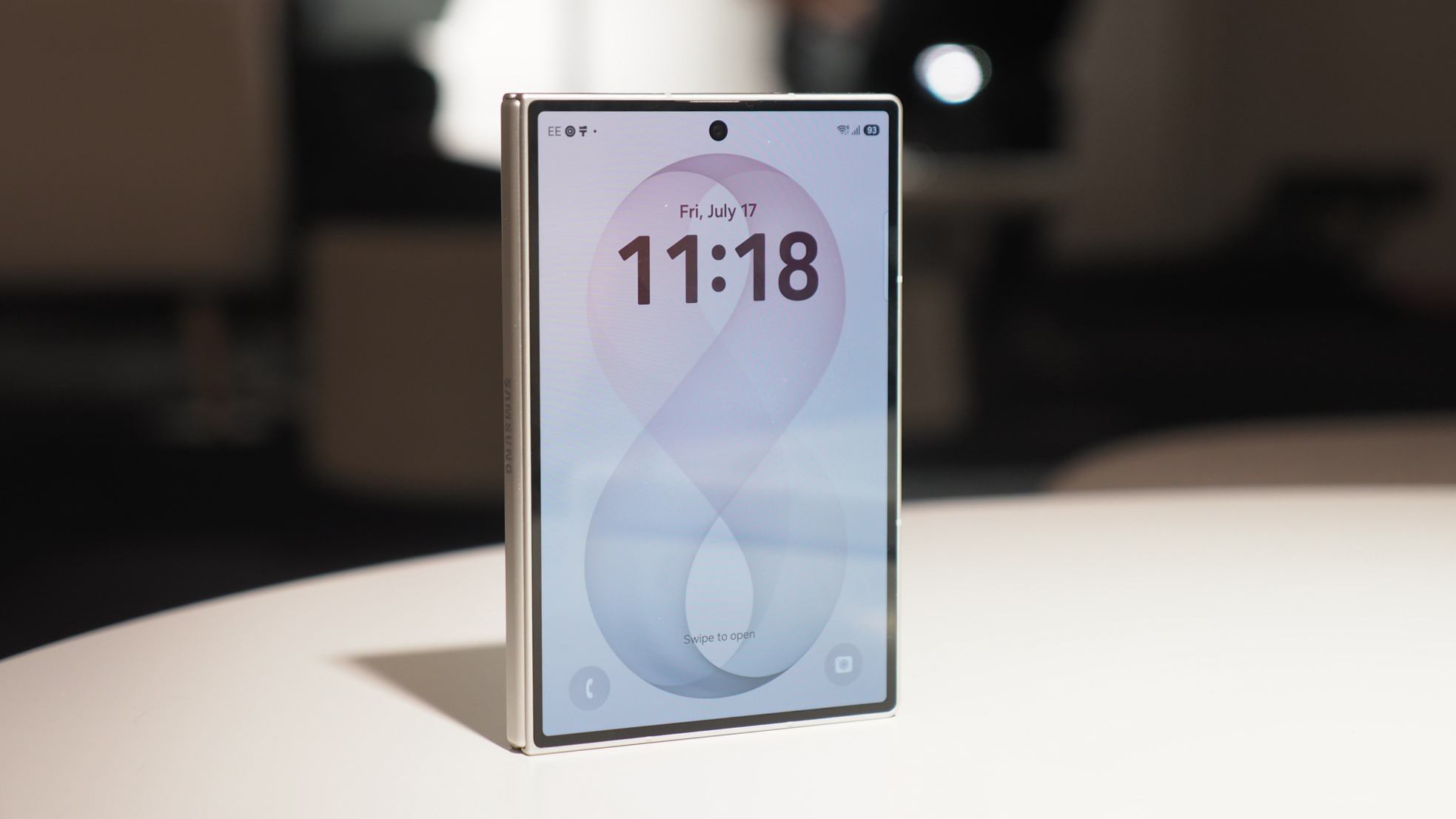 One of iPhone Duo's best features also comes to Android foldables, via a free app
The new iPhone is finally here and Samsung is playing catch up
-
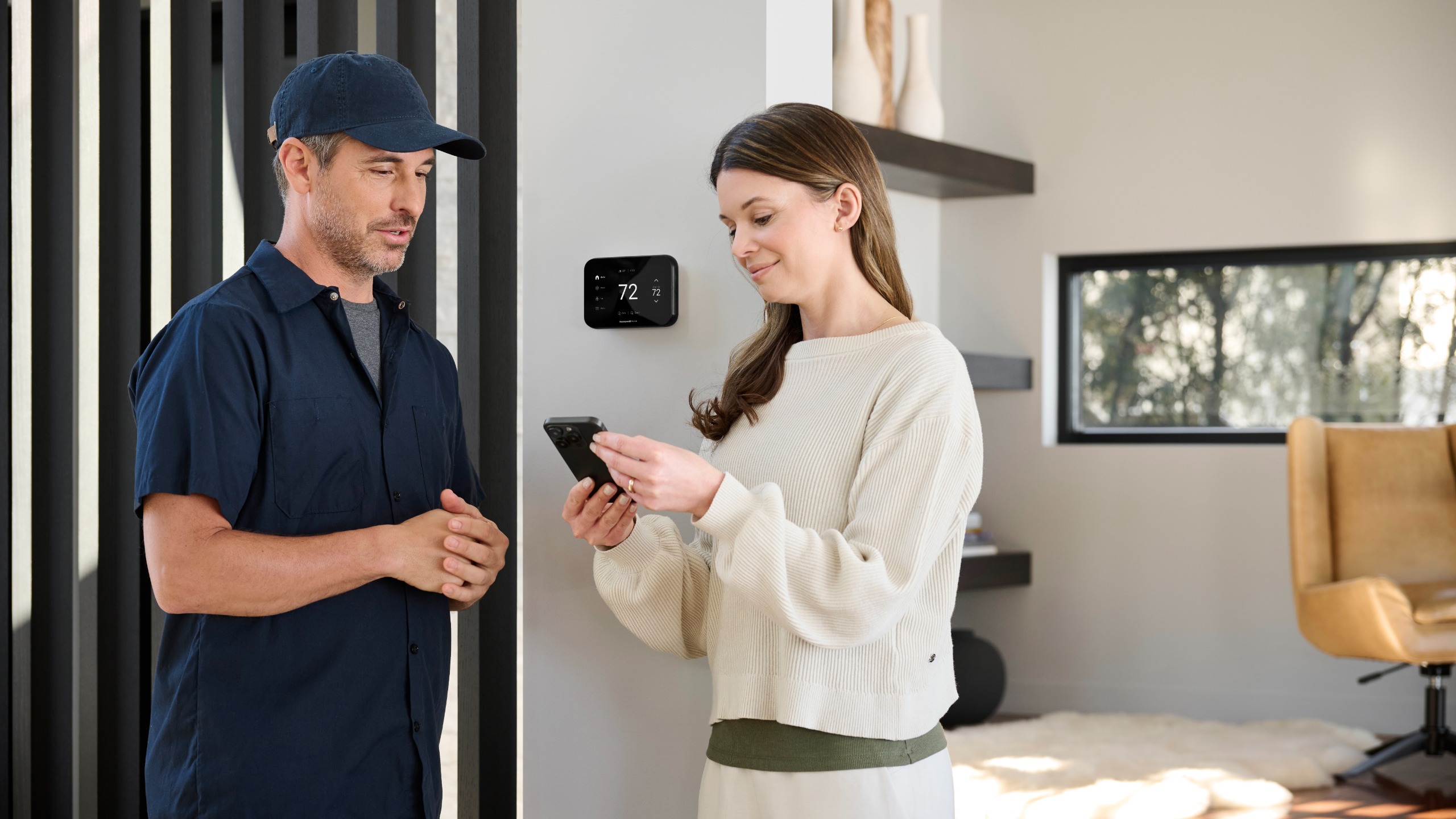 Apple's Adaptive Temperature feature is coming to Honeywell Home's smart thermostats
Honeywell Home owners won't need new hardware to get Apple's latest features


-
One of iPhone Duo's best features also comes to Android foldables, via a free app
The new iPhone is finally here and Samsung is playing catch up
-
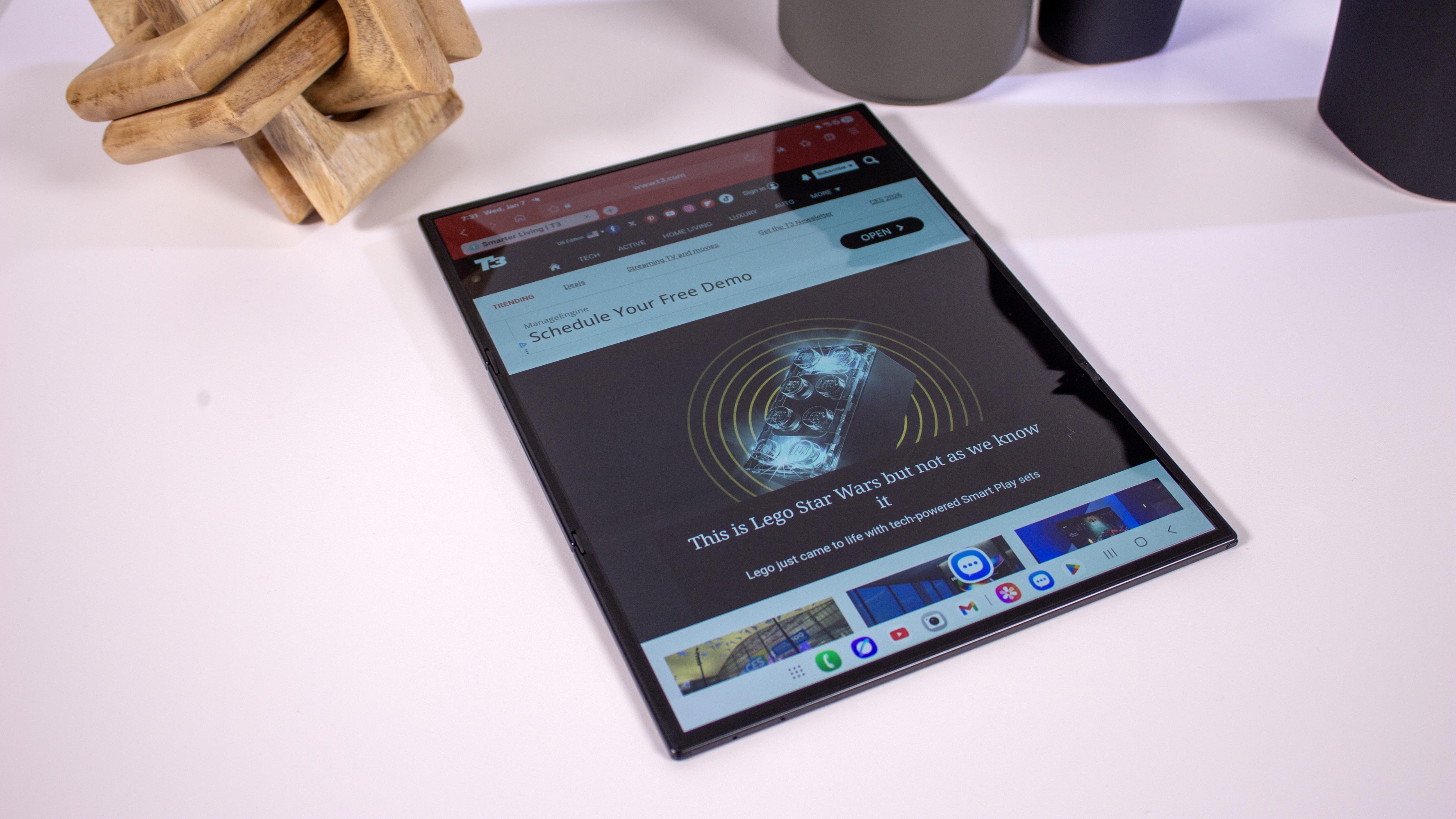 Samsung said to be upping its foldable game next year with six new phones – including a Galaxy Z Slide
There's a folding phone for everyone in Samsung's leaked line-up
-
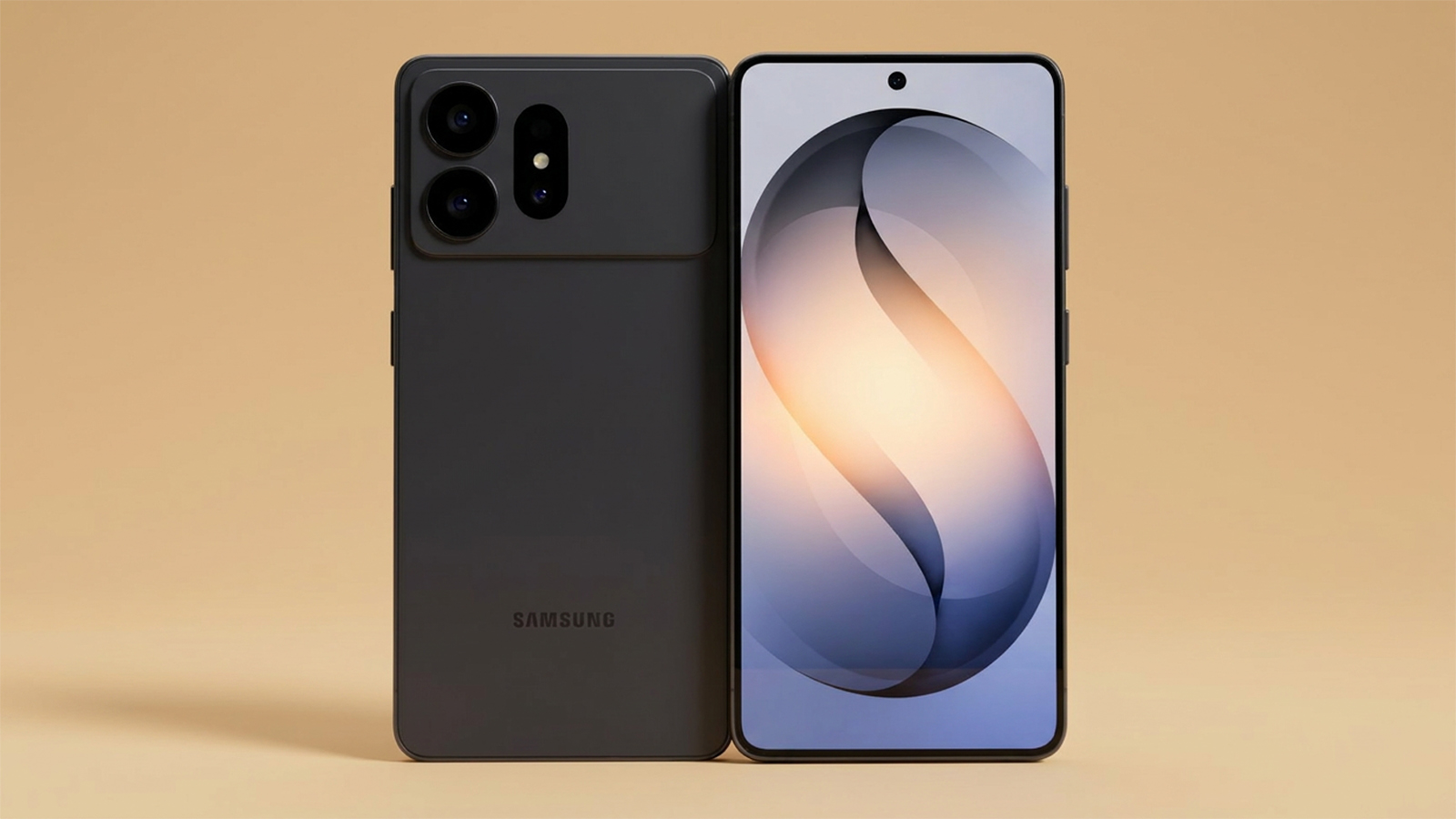 Samsung Galaxy S27 cases reveal camera configurations... and many fans' worst fears
Samsung's next flagship phone could radically change the design, with some unsure about the S27 Ultra
-
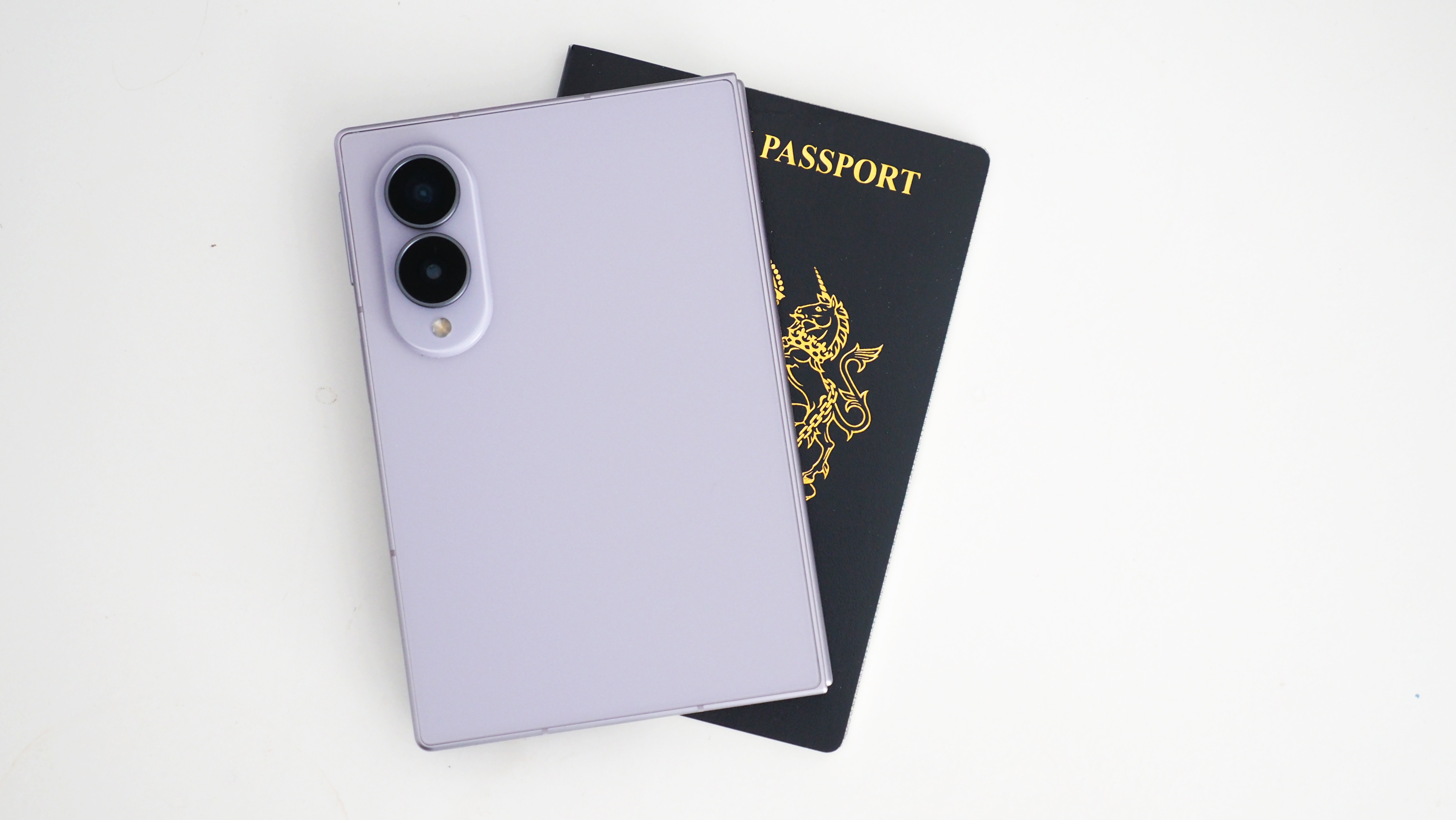 It looks like wider "passport" phones are becoming a thing, even when they don't fold
The latest folding phone trend could jump to regular devices
-
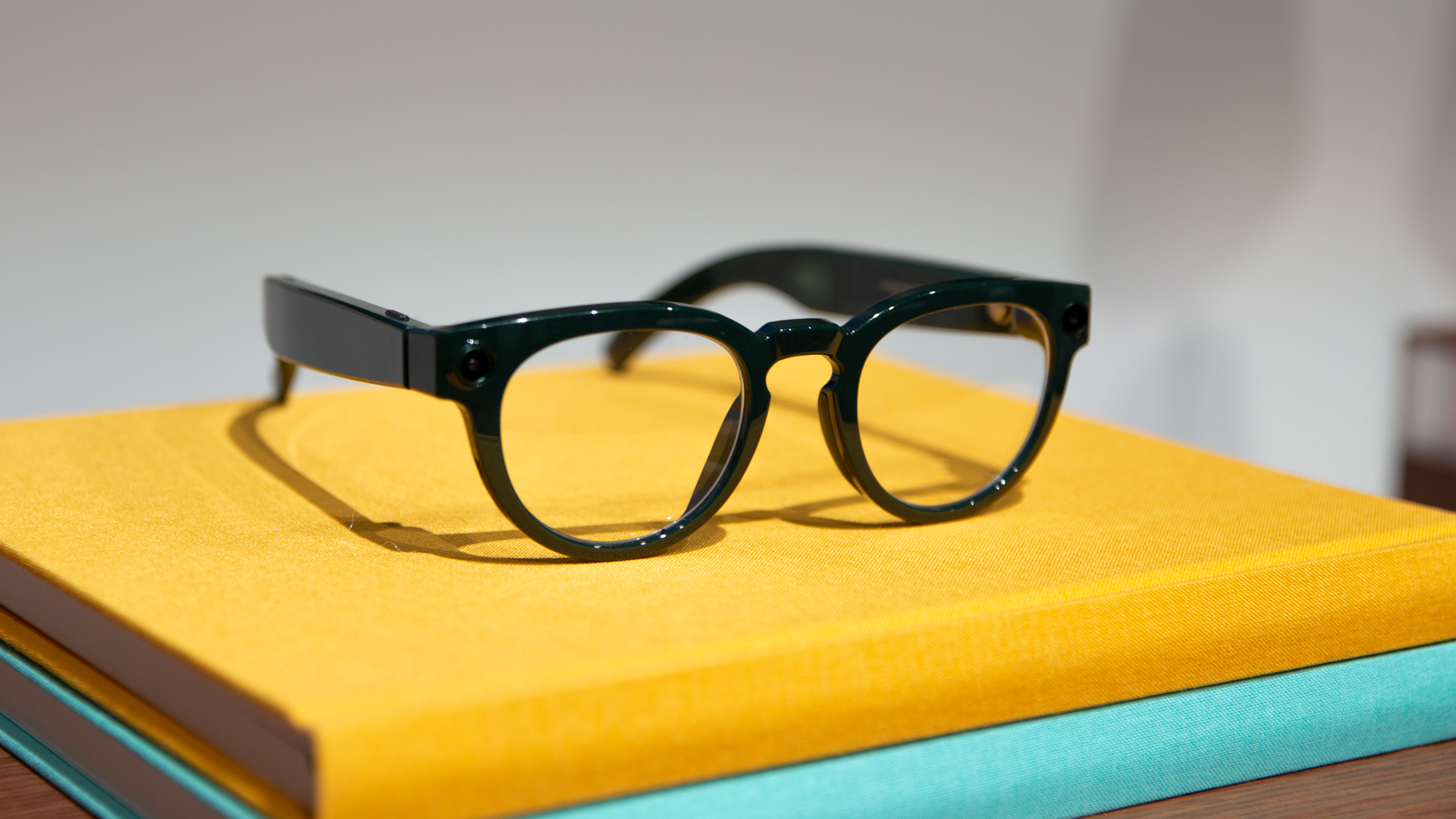 Samsung's Ray-Ban rivalling smart glasses leak in every style and colour
Hold on to your hats, Samsung's smart glasses onslaught is about to start
-
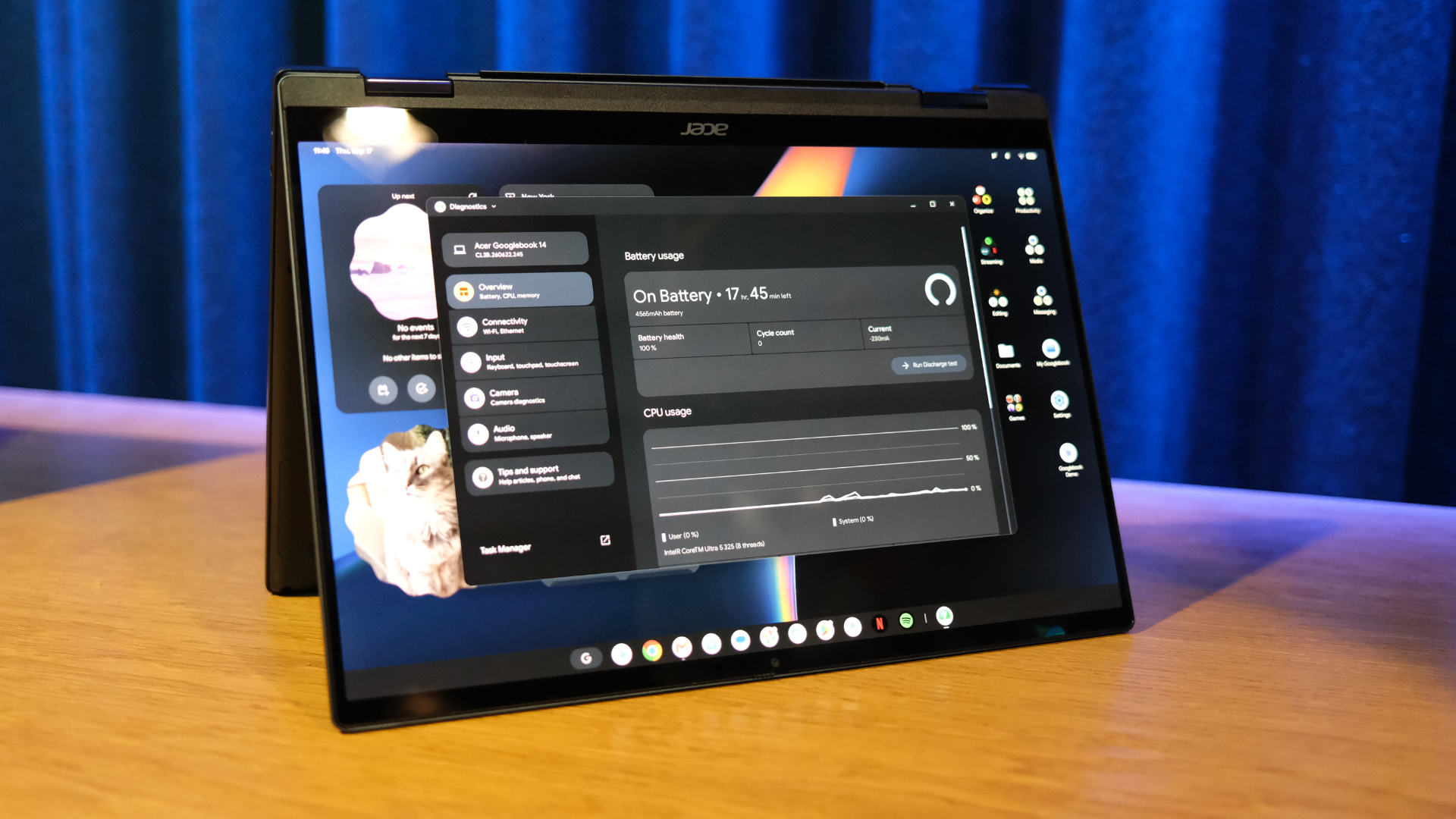 Your new Googlebook now plays nicely with a Samsung Galaxy phone after essential update
Google moves quickly to expand day one support
-
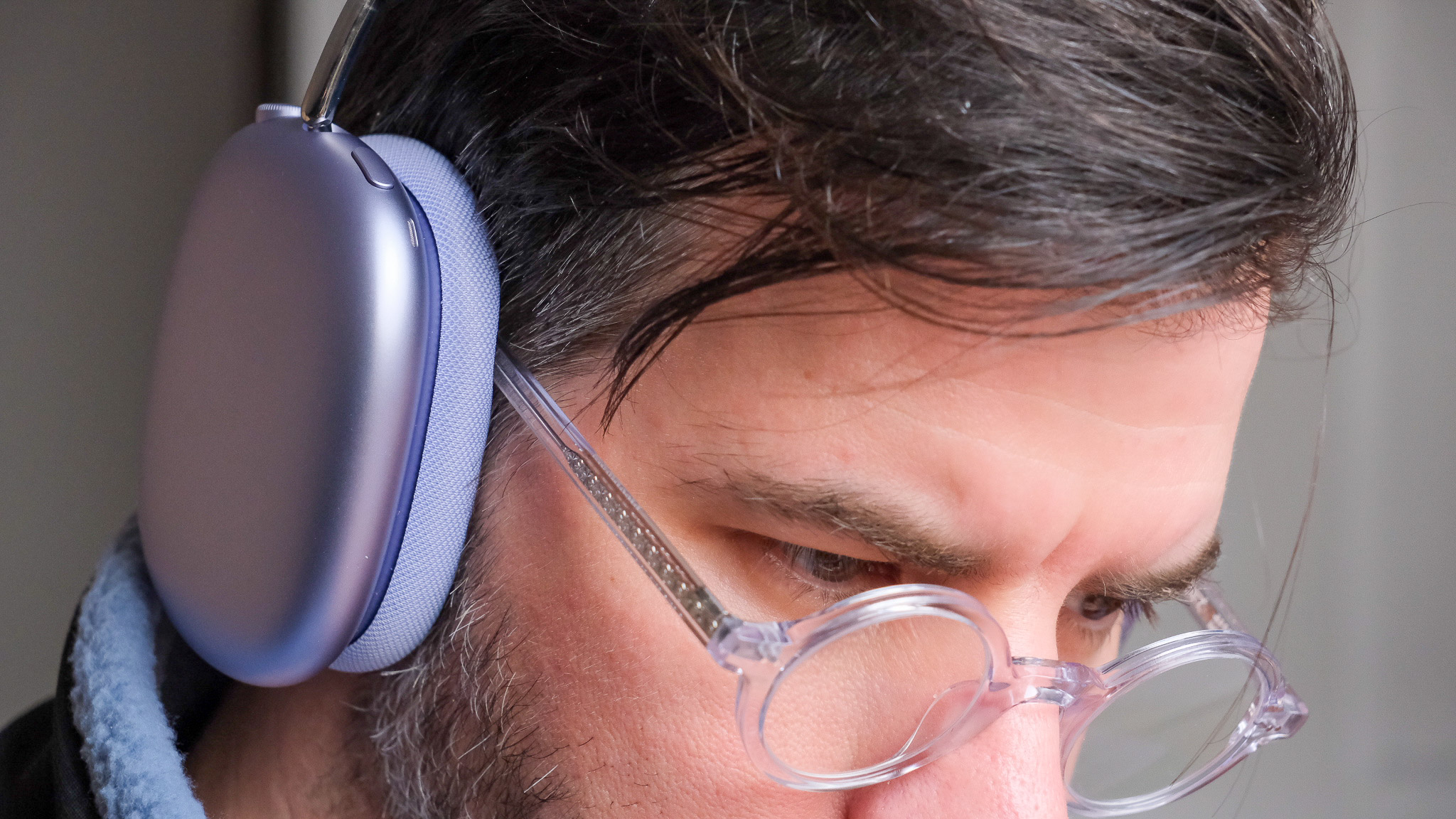 Samsung could have an exciting AirPods Max challenger in the works
New high-end headphones from Samsung could launch in 2027
-
 Samsung Galaxy S27 Ultra colour options leak from a trusted source
And there isn't a burgundy model in sight


