
-
 Google I/O 2026 LIVE: Android 17 latest, Gemini, Android XR and more
Google I/O's live keynote is today – and we're covering it live with all the latest
-
 Apple's WWDC 26 invites give us cheeky clues – if only we could figure them out
Whatever's going on, Apple will be glowing after the show
-
 Alexa Plus is now your personal shopper on Amazon too – it can even buy items for you
You can now use Alexa Plus to shop on Amazon and set parameters so you don't pay too much
-
 TikTok will no longer be free if you want the best experience – pay or face a wall of ads
A new subscription tier will be rolling out over the next couple of months
-
 WhatsApp adding a new privacy feature that even WhatsApp can't snoop on
Incognito Chat with Meta AI will be kept entirely between you and your AI chum
-
 Your Android phone just got a big camera update – and it doesn't matter which brand
Surprise app update brings new features to your Android phone
-
 WhatsApp Plus subscription service coming – here's what you'll get for your money
WhatsApp is finally launching its much-rumoured paid tier – but what does it include?
-
 YouTube's app just got a free update that'll hopefully change my life
I'm waving goodbye to Shorts
-
 Apple's next major iOS update bringing controversial new feature to your iPhone
At least, that's what the beta is suggesting
-
 Apple CarPlay looks set to snag a killer new app very soon
Finally WhatsApp offers proper controls that aren't voice commanded alone
-
 WhatsApp wants to upgrade your life – or at least simplify your chats
Free up space, use multiple accounts and more in this huge update
-
 Google Maps update makes genuinely useful changes you will use forever – and it's Gemini to thank
AI is now baked into Maps for the smartest navigation yet
-
 Spotify adds new feature that's like putting a DJ in your device
Smart Reorder could make track shuffling a seamless listening experience
-
At last, the most requested WhatsApp groups feature is here – but what does it do?
Group message history has arrived, by popular demand
-
 Google just turned your iPhone into a retro film camera for free
This app is loaded with retro charm to make your photos stand out
-
 Don't be ruled by the algorithm, says Deezer as it gives you control over your own music streams
A new Flow Tuner feature arrives on Deezer, allowing you to tweak the content algorithm
-
 Spotify confirms innovative new features to get everyone reading again – including its own physical book store
The music streaming service now covers audiobooks and physical copies, with tech to help you seamlessly switch between
-
 Google Maps just added the upgrade I didn't know I needed
Gemini will now make sure you never feel lost – even in places you've never been before
-
 The latest Adobe Photoshop upgrade takes AI image manipulation to whole new level
It's getting increasingly harder to tell what's real and what's not
-
 TikTok could soon be very a very different app in the US – including the content you get to see
A major change is coming to the app for those in the USA
-
 You can turn yourself into a meme in Google Photos with Gemini – here's how
Be careful you don't get a viral infection, fnar!
-
 Spotify plans to sync your reading across physical, audio and eBooks – pick up where you left off, no matter the format
The option to carry on a novel across different mediums is reportedly in the works
-
 Bored or embarrassed by your Gmail address? Google finally has a solution for that
There’s just a small catch for now
-
 Apple is ready to squeeze Adobe out
10 powerful apps, including Final Cut Pro, Logic Pro, and Pixelmator Pro make up Apple Creator Studio
-
 Google Gemini gets a personalised upgrade to help run your life – here's what it does and how to switch it on
Personal Intelligence will work across Google apps to give you a bespoke experience
-
 Gmail just got an era-defining Gemini update whether you like it or not
You might notice some changes to Gmail on your phone, as a major update rolls out
-
 Google Photos bringing you a legal way to touch up people in public
The facial you want in a flash, with just a few button presses
-
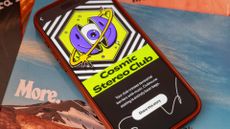 Spotify Wrapped 2025 is here – and it's not just about you anymore
Spotify has added a whole bundle of new features to its latest end-of-year round-up, and friends and family can join in the fun
-
The biggest Google Maps update in years has started to roll out to Android and iOS
Voice interaction with Google Maps just got a whole lot more advanced


